

Product and commerce visuals
Use Seedream 5.0 Lite to develop clean product scenes, listing concepts, lifestyle compositions, and campaign variations. Keep the product description, material, camera angle, and intended marketplace explicit.
Create production-ready visuals with Seedream 5.0 Lite, a ByteDance model built for fast creative iteration. Choose a prompt, aspect ratio, output settings, and generate without leaving this page.

Seedream 5.0 Lite is selected by default. Create one image from a prompt and optional references here, or open the batch workspace when you need Variations, CSV, or Products.
The settings below reflect the capabilities currently exposed in PixBulk, so the generator and this guide stay aligned.
Seedream 5.0 Lite is an AI image model from ByteDance. Seedream 5.0 Lite is designed for rapid drafts, affordable exploration, and high-volume creative iteration. PixBulk makes the model available inside a practical generation workspace where a single prompt can become one image, a group of variations, a CSV-driven campaign, or a set of product visuals.
On this page, Seedream 5.0 Lite can produce the output tiers shown in the generator, up to 2K / 3K, with pricing from 17 credits per image. The credit estimate updates before submission, and failed generation jobs follow PixBulk’s normal refund handling.
Choose from 1:1, 2:3, 3:2, 3:4, 4:3, 9:16, 16:9 to prepare square listings, portrait posts, landscape banners, and other delivery formats. Treat the ratio as part of the creative brief: composition, subject spacing, typography, and background detail all change when the canvas changes.
Start with these common production jobs, then adapt the prompt and output ratio to your channel.
Use Seedream 5.0 Lite to develop clean product scenes, listing concepts, lifestyle compositions, and campaign variations. Keep the product description, material, camera angle, and intended marketplace explicit.
Draft social graphics, covers, posters, menus, and announcement cards with Seedream 5.0 Lite. Put required wording in quotes and describe hierarchy, placement, type style, and contrast.
Turn one creative direction into multiple Seedream 5.0 Lite outputs for testing. Variations mode explores alternatives, while CSV mode maps prompts to a larger campaign without repetitive setup.
Explore characters, environments, editorial scenes, mood boards, and visual narratives with Seedream 5.0 Lite. Reuse stable descriptors across prompts when consistency is more important than surprise.
Use these visuals or prompt frameworks as starting points. Results vary by prompt, ratio, references, and model updates.
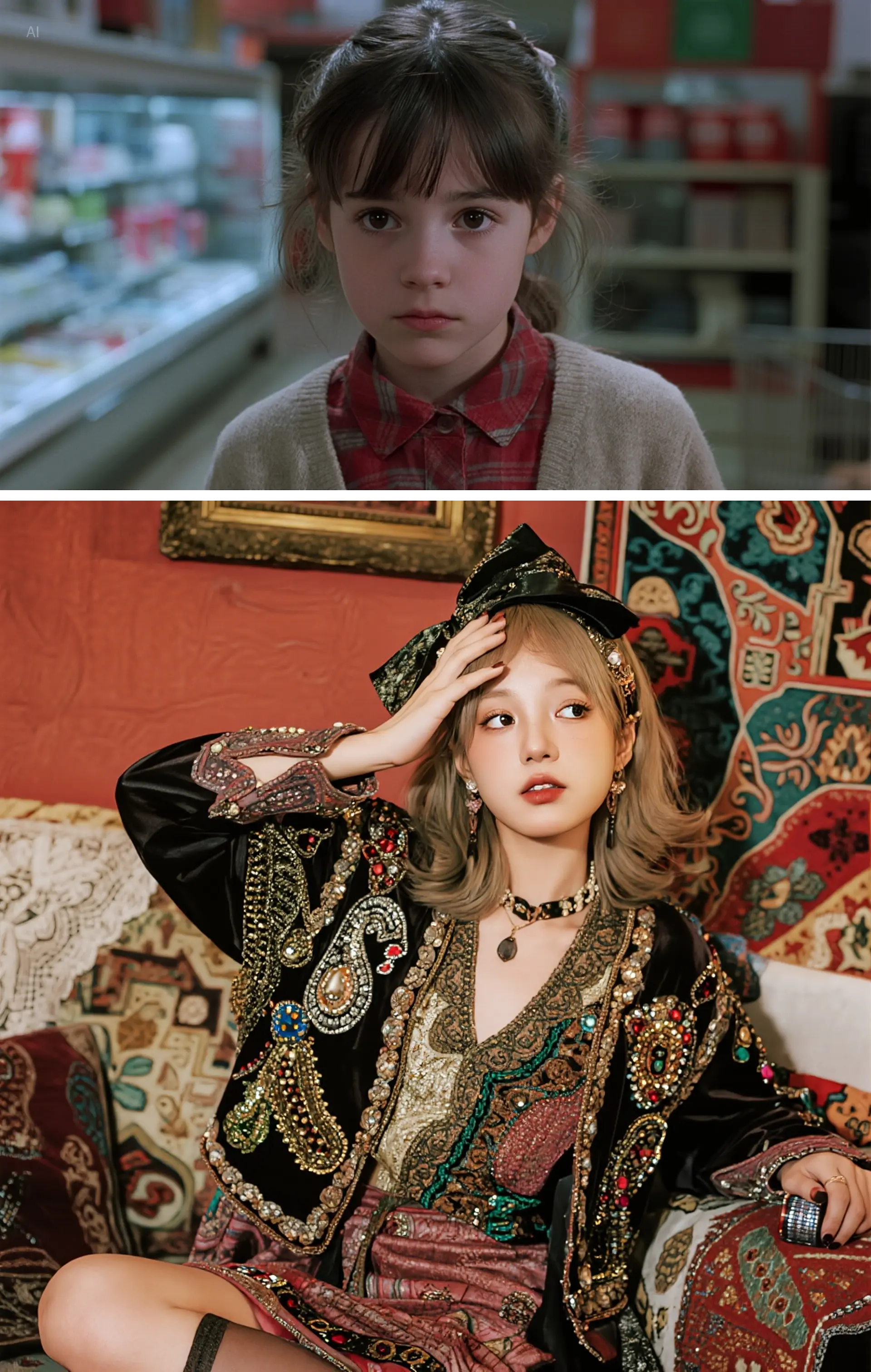


The same three-step workflow works for one-off ideas and structured batch production.
Seedream 5.0 Lite is selected when the page loads. Write one prompt, add supported reference images when needed, or open the batch workspace for larger jobs.
Describe the subject, context, composition, style, and constraints. Then choose the supported ratio and resolution for Seedream 5.0 Lite, adding reference images only when the model allows them.
Submit the job, compare the Seedream 5.0 Lite results, and regenerate with targeted prompt changes. Completed work is available in history for later review and download.
PixBulk exposes the controls needed for repeatable production while keeping model-specific limits visible.
Seedream 5.0 Lite turns detailed natural-language briefs into new visuals. Specific prompts usually provide more controllable results than short keyword lists.
Seedream 5.0 Lite accepts reference images in PixBulk, with up to 5 files available to guide subject, style, layout, or edit intent.
Choose supported aspect ratios and output tiers up to 2K / 3K. PixBulk updates the available controls whenever Seedream 5.0 Lite or the workflow changes.
Create a single Seedream 5.0 Lite image, several variations, a prompt-per-row CSV batch, or product-led outputs from the same workspace.
Active and completed jobs are recorded in PixBulk history, where single generations and batches remain separated for easier review.
PixBulk maps Seedream 5.0 Lite to seedream-5.0-lite and only sends settings supported by that integration, reducing avoidable provider errors.
A strong prompt reads like a compact creative brief: concrete enough to guide the model, but organized enough to edit.
Name the primary subject first, then explain what the image must accomplish. Separate must-have details from optional atmosphere so priorities are unambiguous.
Specify framing, camera position, subject scale, negative space, focal depth, light direction, and time of day. These choices often matter more than adding extra style adjectives.
Put exact copy in quotation marks and state where it belongs, how prominent it should be, and what typographic character it needs. Always review spelling in the output.
When refining Seedream 5.0 Lite results, adjust one major variable at a time—composition, palette, styling, or wording—so you can tell which instruction improved the image.
Use credits, output tiers, and creative strengths as practical selection signals. The best model depends on the job, not one universal ranking.
| Model | Best-fit strength | Output tiers | Credits / image |
|---|---|---|---|
| Seedream 5.0 Lite | fast creative iteration | 2K / 3K | 17 |
| Seedream 5.0 Pro | guided generation and editing | 1K / 2K | 22–44 |
| Nano Banana 2.1 | high-detail final output | 1K / 2K / 4K | 5–8 |
Generative results are probabilistic. Plan for review and use only the controls shown for the selected model.
Seedream 5.0 Lite currently exposes 2K / 3K output and these ratios in PixBulk: 1:1, 2:3, 3:2, 3:4, 4:3, 9:16, 16:9. Unsupported combinations are removed or adjusted before submission; switching models can also change the available controls.
Inspect every Seedream 5.0 Lite result for text accuracy, anatomy, logos, product details, cultural context, and brand compliance. AI output should be treated as a creative draft until a person approves it for release.
Practical answers about access, credits, inputs, output controls, batch workflows, and responsible review.
Seedream 5.0 Lite is an AI image generation model associated with ByteDance. PixBulk provides a model-aware workspace around it, including prompt input, supported output controls, generation history, and batch-oriented workflows.
Seedream 5.0 Lite currently starts at 17 PixBulk credits per generated image. The generator shows the calculated total before submission, so image count and any resolution-dependent pricing are visible before credits are used.
The PixBulk integration currently exposes these Seedream 5.0 Lite output tiers: 2K / 3K. The available selector is the source of truth because provider capabilities and integrations can change over time.
Yes. Seedream 5.0 Lite accepts reference images in PixBulk, with up to 5 uploads shown in the current interface. References can guide composition, subject, style, or edit intent, but the prompt should still explain how each image should be used.
Seedream 5.0 Lite currently supports these ratios in PixBulk: 1:1, 2:3, 3:2, 3:4, 4:3, 9:16, 16:9. Choose the destination format before generation because the ratio affects framing, spacing, background coverage, and room for text.
Yes. Use Variations for multiple outputs from one prompt, CSV for prompt-per-row production, or Products for product-led batches when the selected model supports that input. Free-account batch limits and paid-plan entitlements still apply.
Yes. The single-image generator opens with Seedream 5.0 Lite selected. You can switch models here, or open the batch workspace for Variations, CSV, and Products.
Completed Seedream 5.0 Lite work appears in PixBulk history. Single generations and batch jobs have separate tabs, which makes it easier to reopen results, inspect details, regenerate, and use paid download actions.
Image generation is probabilistic, so the same Seedream 5.0 Lite prompt can produce different composition, detail, or styling. Preserve the instructions that matter, describe constraints explicitly, and iterate one variable at a time when consistency is important.
Yes. Review every Seedream 5.0 Lite image for accuracy, unwanted artifacts, text, product fidelity, brand rules, rights, and policy requirements. Human approval is especially important for commercial, informational, or public-facing content.
Capabilities are based on official vendor material and the API documentation used by the PixBulk integration. App-facing controls may intentionally expose a smaller supported subset.
Open the generator above with Seedream 5.0 Lite already selected, write your brief, choose the delivery format, and move from one idea to a reviewable result in the same workspace.
Generate with this model