
OpenAI's GPT Image 2.5 family on PixBulk

GPT Image 2.5 Flare Image Generator

Move from a written brief to usable visuals quickly with OpenAI's speed-focused GPT Image 2.5 model. Generate new images, direct edits with references, and produce multiple variations without leaving your PixBulk workspace.

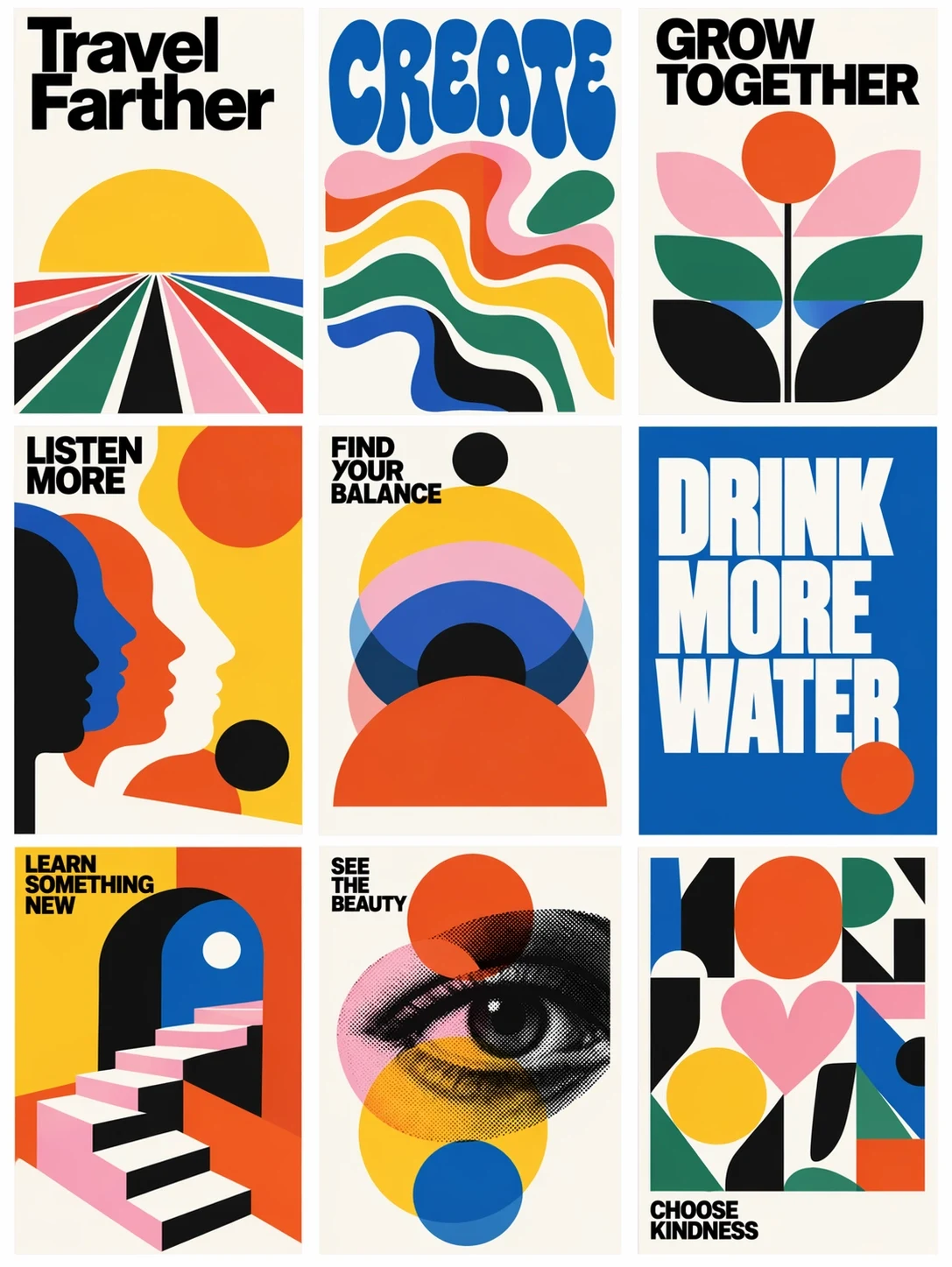
A colorful set of mid-century poster concepts created with GPT Image 2.5 Flare
Official GPT Image 2.5 family showcase imagery. Results vary by prompt, references, and settings.

Create with GPT Image 2.5 Flare

GPT Image 2.5 Flare is selected by default. Create one image from a prompt and optional references here, or open the batch workspace when you need Variations, CSV, or Products.

Loading the image generator…

Model overview

What is GPT Image 2.5 Flare?

Flare is the fast, high-quality model in OpenAI's GPT Image 2.5 family, designed for everyday image generation and responsive creative iteration.

OpenAI positions Flare as the default choice for most applications. It improves image quality over GPT Image 2 while cutting latency by 50%, so it fits workflows where a team needs to explore, compare, and revise ideas without waiting on a premium final-render path.

That balance makes Flare useful for social graphics, ecommerce concepts, rapid product visualization, visual search experiences, and high-volume content production. In PixBulk, the same model works for one-off generations and batch jobs, while quality, canvas shape, background, output format, and reference images remain explicit controls.

Developer
OpenAI
Model ID
gpt-image-2.5-flare
Output resolution
1K / 2K / 4K
Reference images
Supported, up to 16
Credits per image
1–246
Aspect ratios
1:1, 2:3, 3:2, 3:4, 4:3, 9:16, 16:9, 5:4, 4:5, 2:1, 1:2, 21:9, 9:21, 3:1, 1:3

Built for fast visual iteration

Flare is most valuable when speed must still leave room for art direction, readable text, repeatable subjects, and practical delivery formats.

Draft polished campaign concepts sooner

Translate a detailed creative brief into presentation-ready directions without beginning from a blank canvas. Specify the layout, palette, typography, objects, and visual era, then generate alternatives while the idea is still fresh.
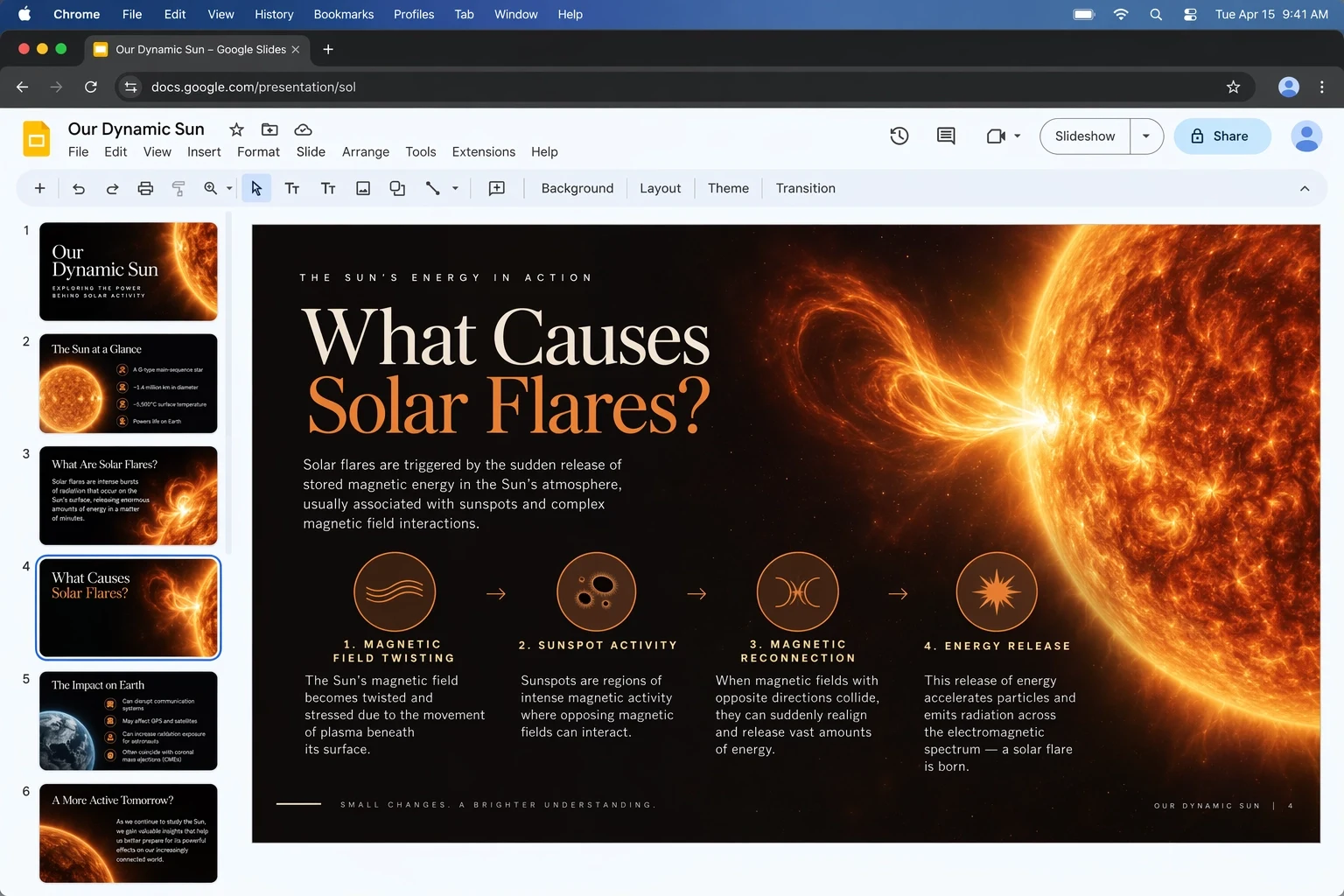
Presentation slides with branded visual concepts generated by GPT Image 2.5 Flare

Create assets with embedded text

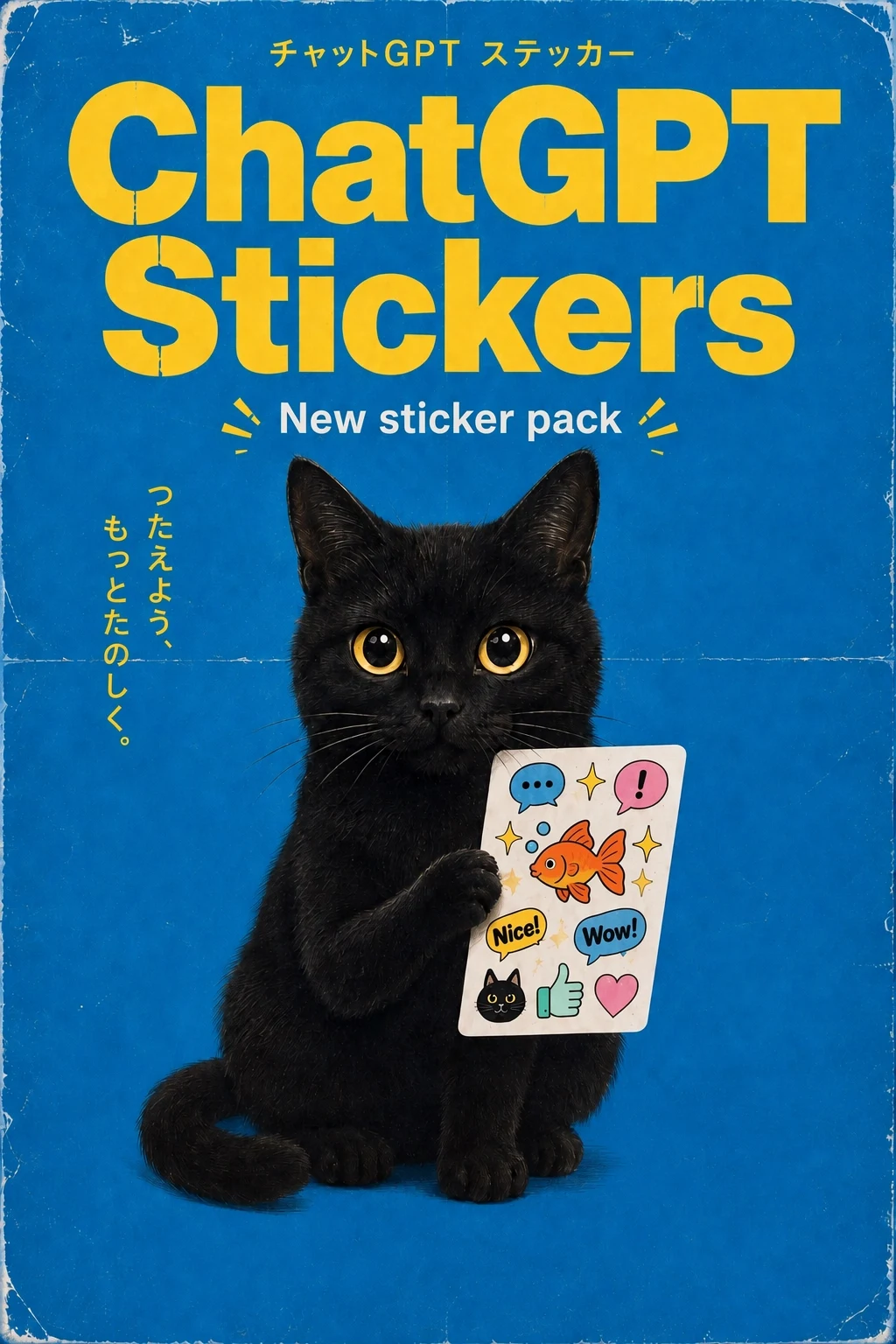
Ask for labels, headlines, signs, packaging copy, or sticker lettering as part of the composition. Clear wording, hierarchy, placement, and style instructions give the model a stronger target and make review easier.

A collection of illustrated stickers with text created by GPT Image 2.5 Flare

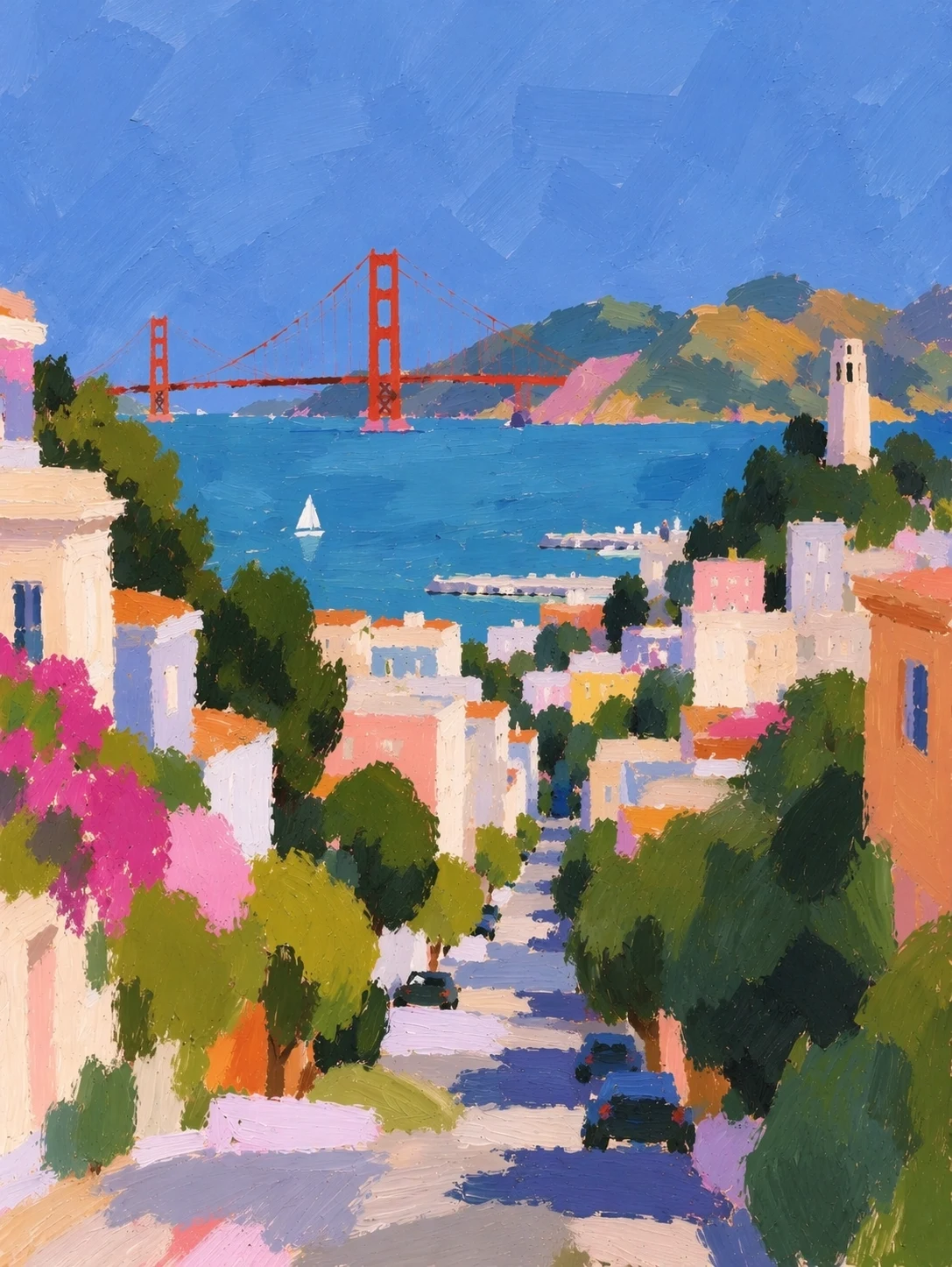
Explore distinct art directions

Move between editorial illustration, photography, painterly scenes, graphic posters, and stylized product visuals. Describe materials, light, lens or medium, color relationships, and composition instead of relying on a short style label alone.

An impressionist city scene generated by GPT Image 2.5 Flare

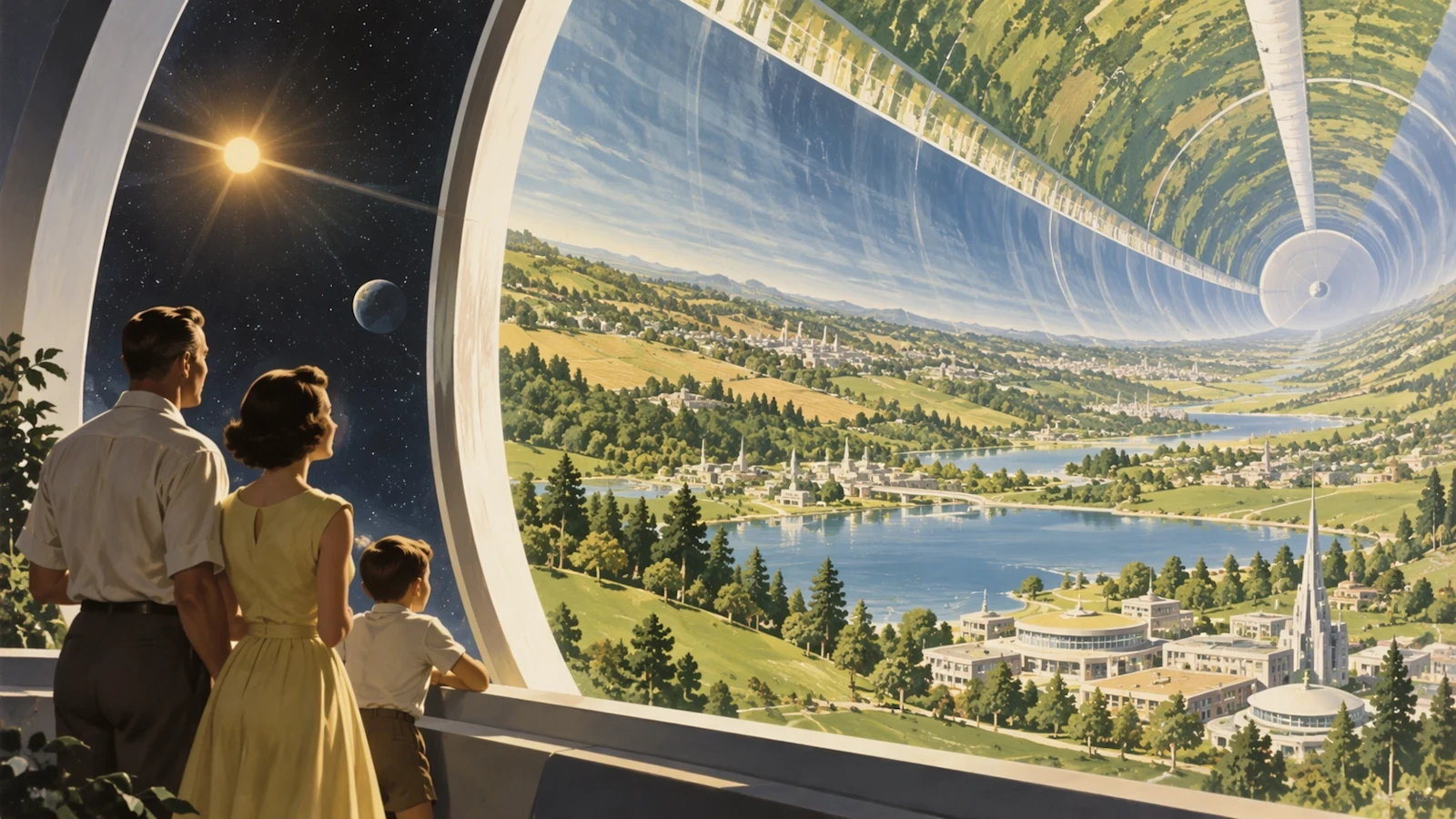
Scale one brief into many deliverables

Use Variations when one prompt needs several options, CSV when every row has its own prompt, or Products when reference-led product imagery is the job. The selected quality and image count are priced before submission.

A retrofuturist visual created with GPT Image 2.5 Flare

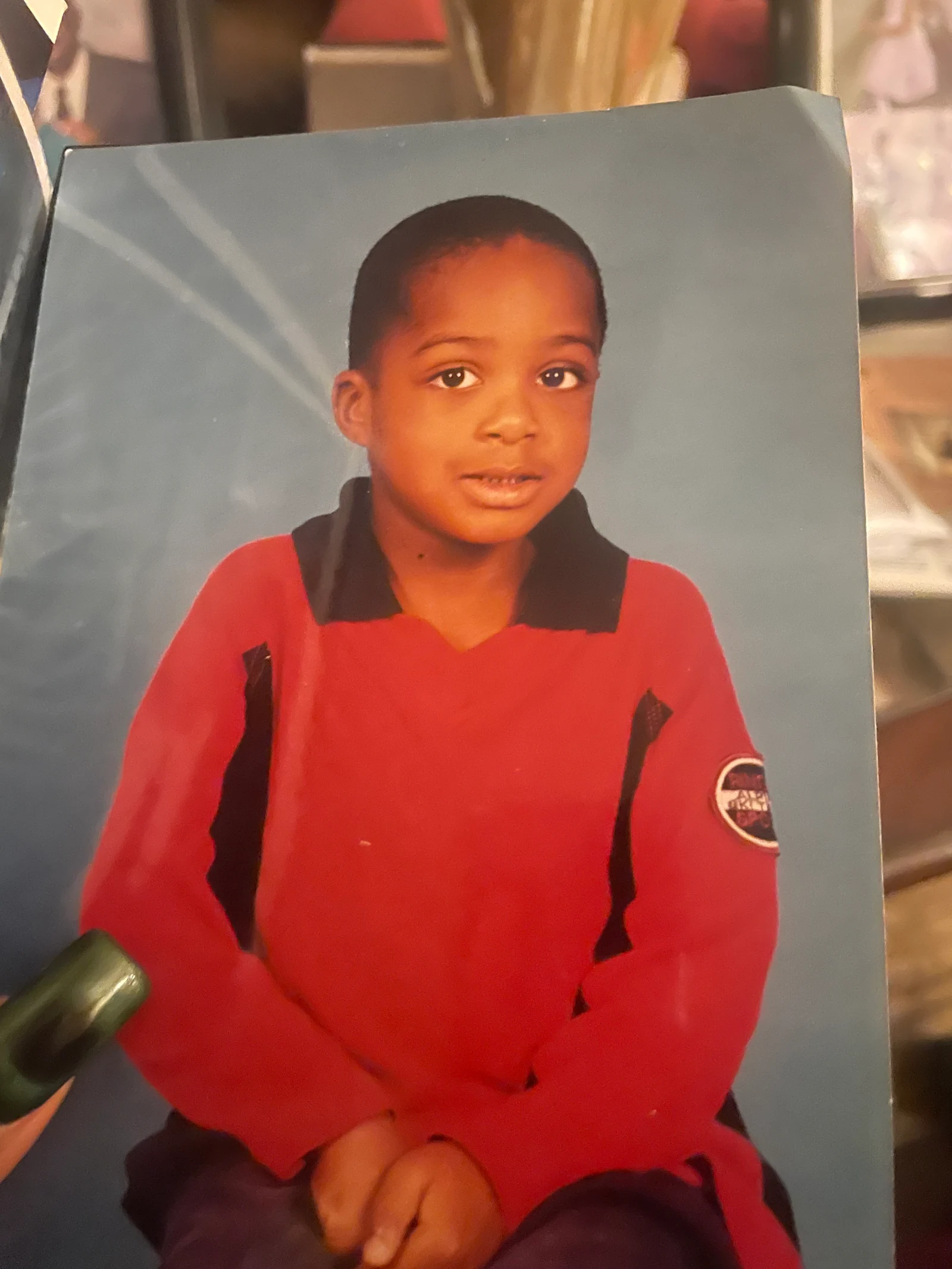
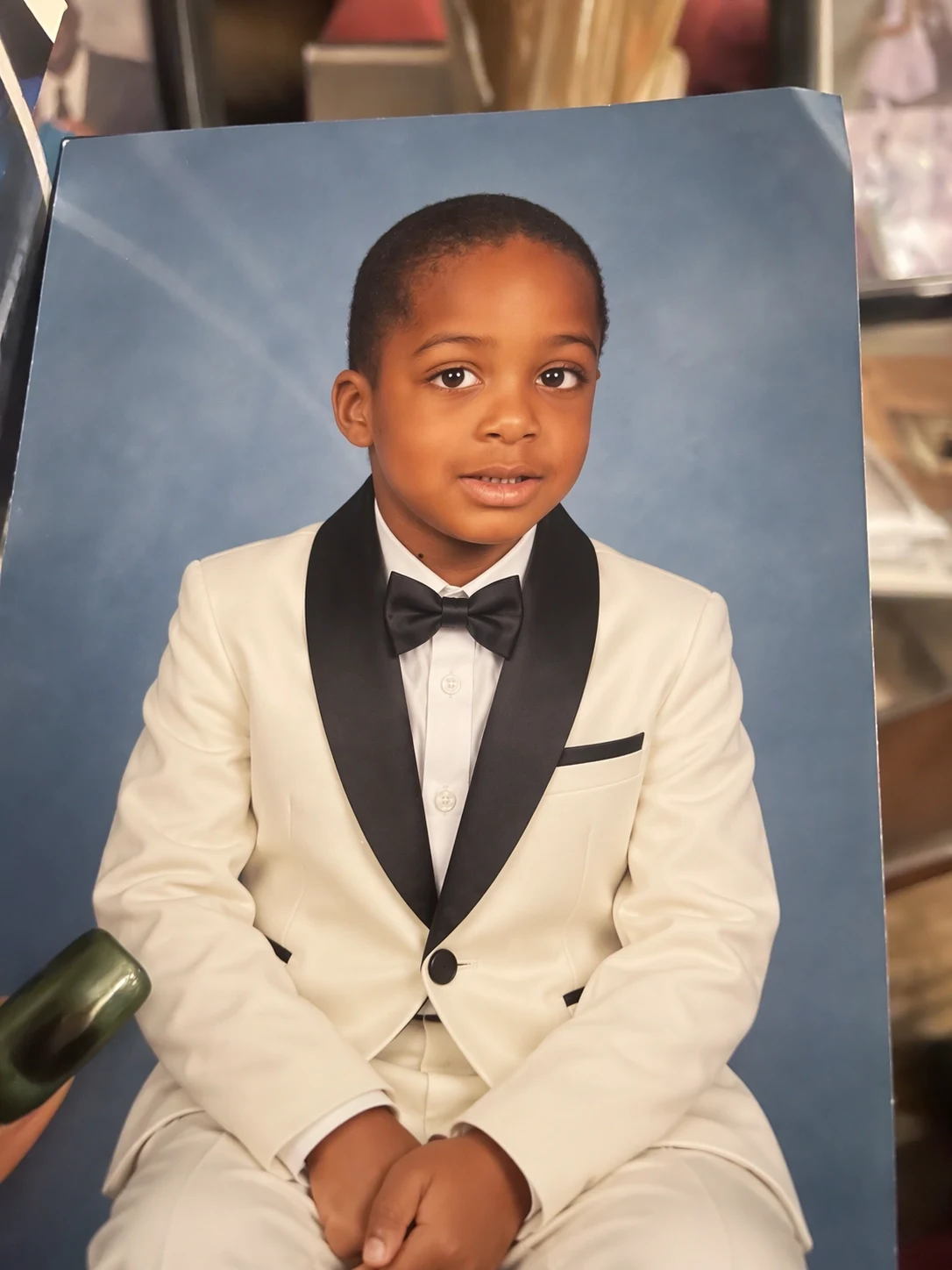
Direct edits with natural-language instructions

Upload one or more reference images and explain what should change and what must remain stable. Flare can support quick background, styling, composition, and object-level iterations while preserving the overall intent of the source.

Original portrait before a GPT Image 2.5 Flare edit
Before
Portrait after a background and lighting edit with GPT Image 2.5 Flare
After
Example edit instruction

Replace the simple background with a refined studio set, keep the subject identity and pose, preserve the wardrobe colors, and add soft editorial lighting with realistic shadows.

Where Flare fits best

Choose Flare when creative throughput and quick feedback matter more than spending the longest time on a single premium render.

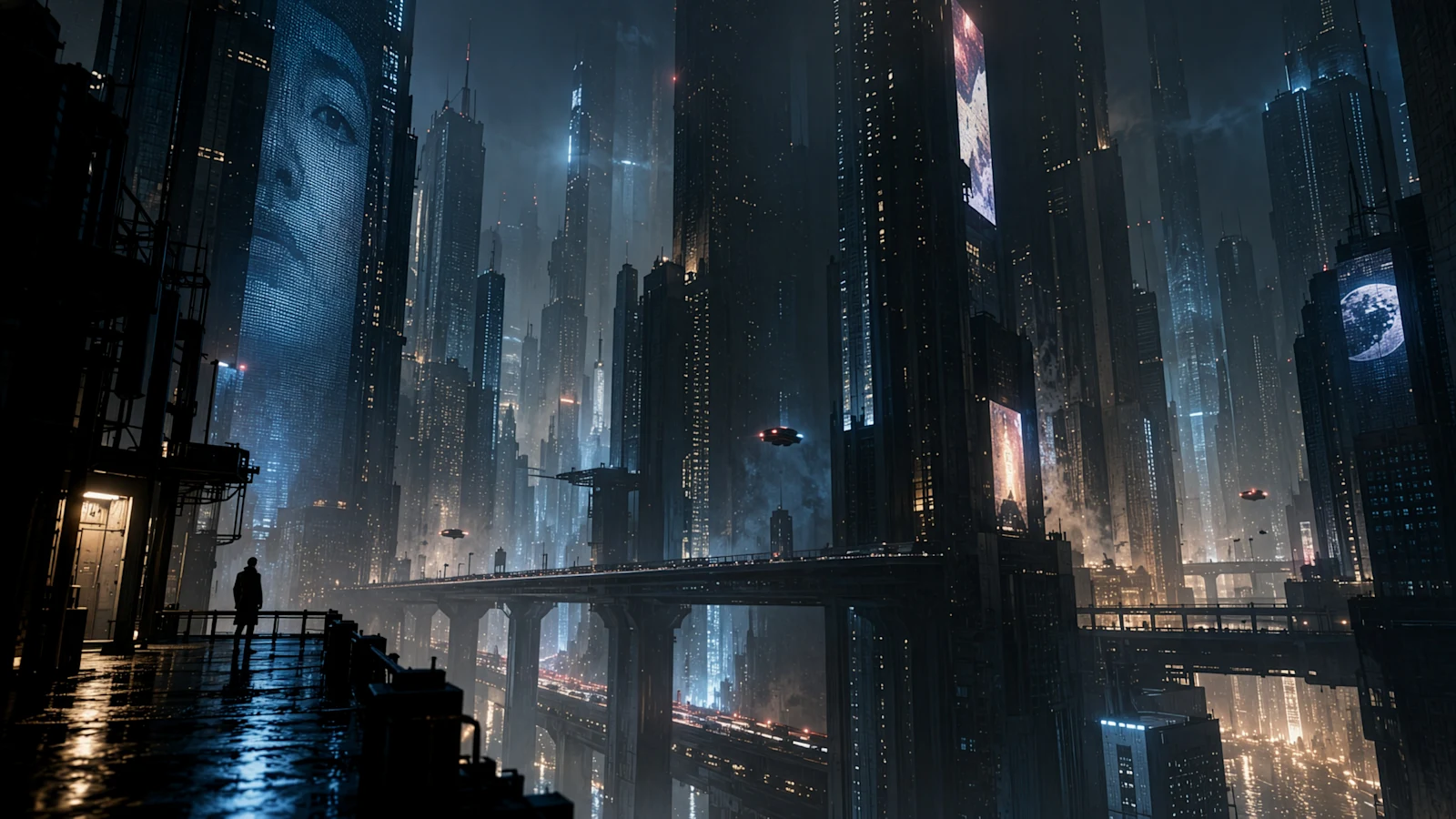
A cyberpunk creator visual made with GPT Image 2.5 Flare

Social and creator content

Develop post concepts, thumbnails, promotional cards, event graphics, and visual series in the aspect ratio required by the publishing channel.

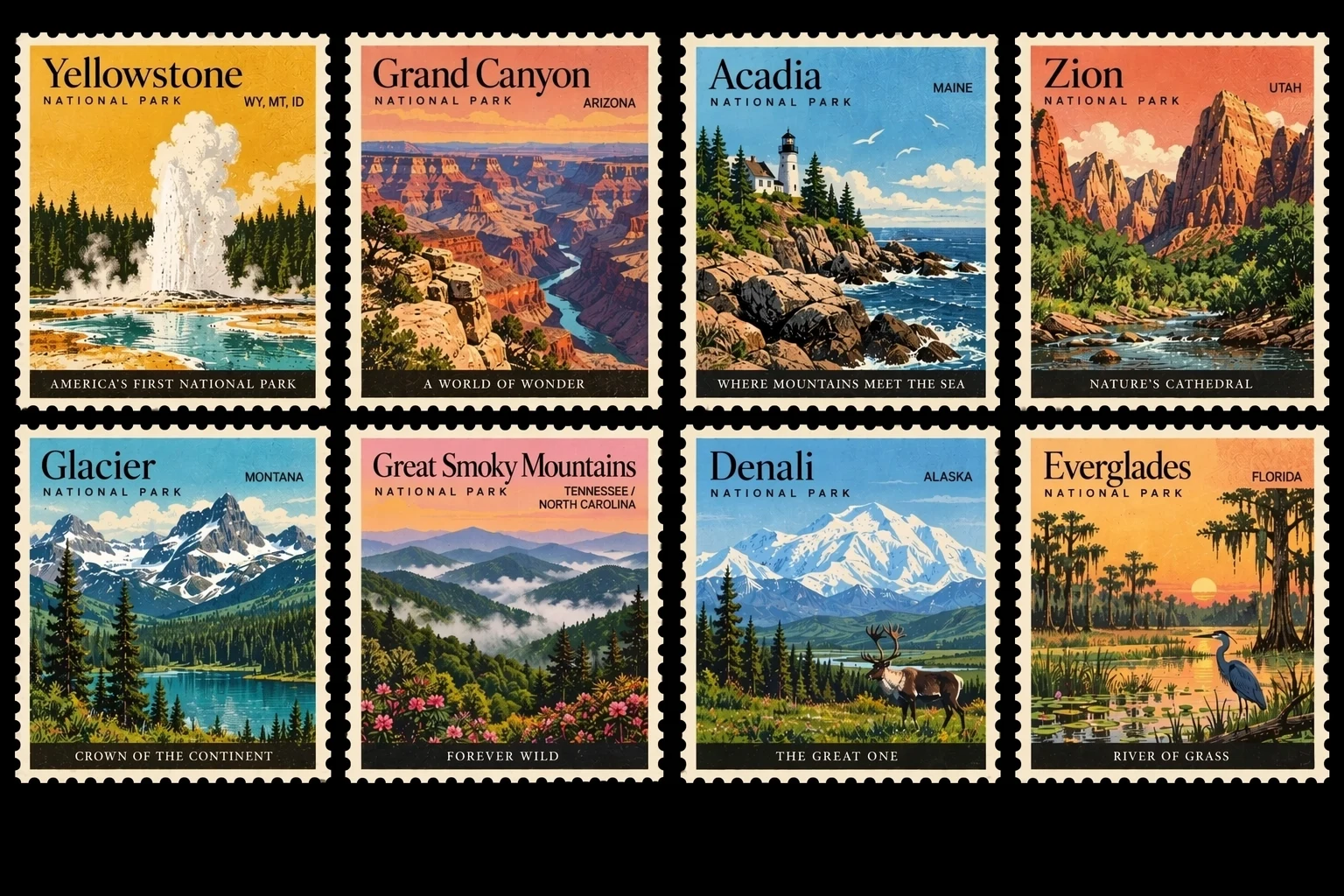
A vintage stamp product concept made with GPT Image 2.5 Flare

Product and ecommerce drafts

Test settings, styling, backgrounds, seasonal directions, and listing compositions before committing time to final production or a photo shoot.

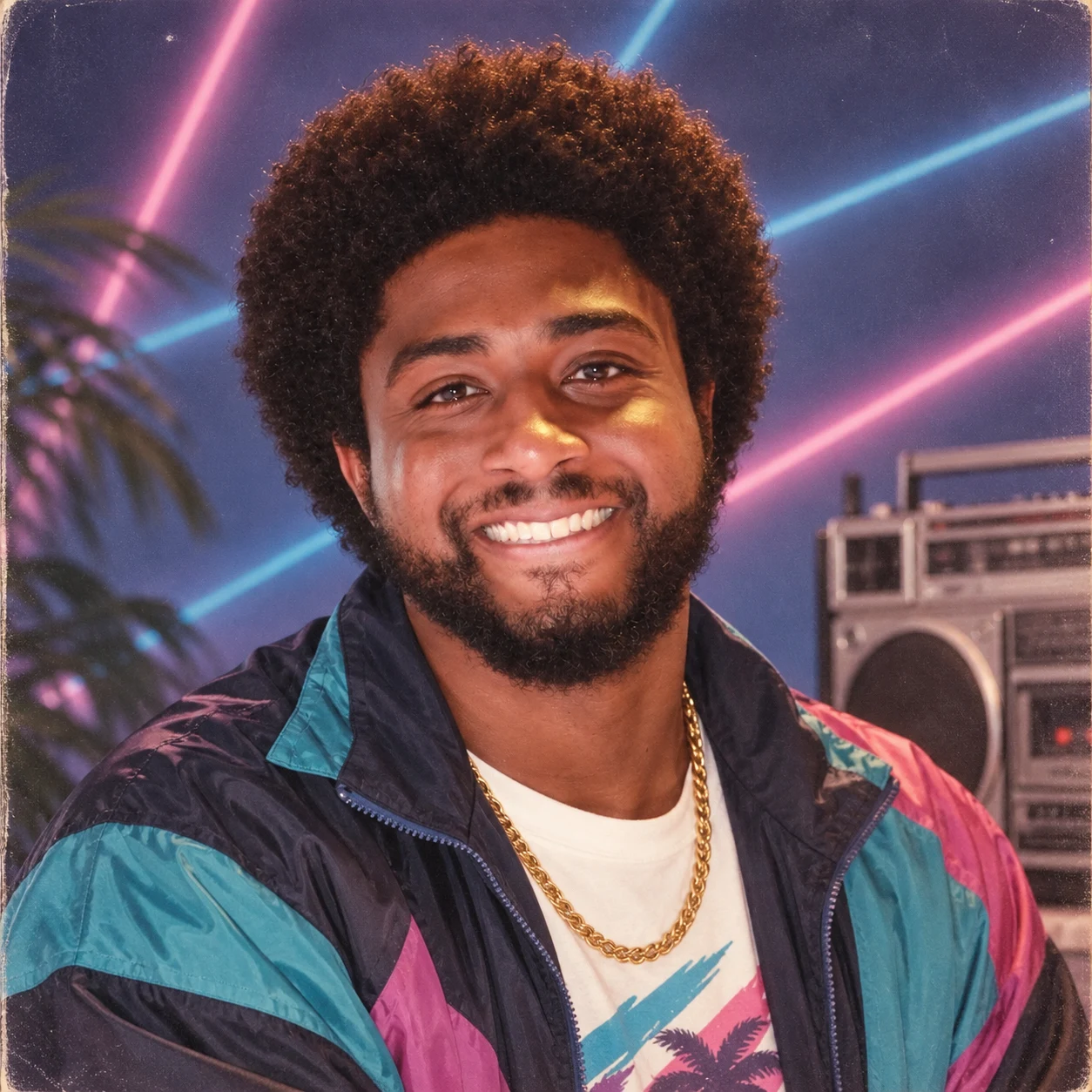
A retro editorial portrait made with GPT Image 2.5 Flare

Editorial and brand exploration

Turn a campaign theme into several visual territories that stakeholders can compare, annotate, and refine into a consistent direction.

How to prompt GPT Image 2.5 Flare

A structured brief produces more controllable variations and makes each revision easier to diagnose.

Prompt formula

Subject + action + setting + composition + lighting + materials + color system + exact text + delivery format

Example prompt

Design a square launch poster for a compact wireless speaker on a warm terracotta plinth, three-quarter product view, soft late-afternoon window light, tactile paper texture, navy and coral palette, headline ‘SMALL SIZE. FULL SOUND.’ at the top, clean editorial spacing, premium but playful art direction.

1

Name the non-negotiables

State the subject, required text, product details, dominant colors, and placement constraints before adding stylistic language.

2

Describe relationships

Explain what sits in front, behind, beside, or inside another element so the model can reason about the composition.

3

Revise one variable at a time

Keep the stable parts of a successful prompt and change only the light, framing, copy, or material that needs improvement.

4

Match quality to the decision

Use a lower tier for exploration and raise quality when the direction is approved and detail becomes more important than iteration speed.

How to use the GPT Image 2.5 Flare image generator

The same three-step workflow works for one-off ideas and structured batch production.

1

Start with this model

GPT Image 2.5 Flare is selected when the page loads. Write one prompt, add supported reference images when needed, or open the batch workspace for larger jobs.

2

Write the brief and set output controls

Describe the subject, context, composition, style, and constraints. Then choose the supported ratio and resolution for GPT Image 2.5 Flare, adding reference images only when the model allows them.

3

Generate, review, and refine

Submit the job, compare the GPT Image 2.5 Flare results, and regenerate with targeted prompt changes. Completed work is available in history for later review and download.

GPT Image 2.5 controls in PixBulk

These are the settings currently exposed by the PixBulk integration. The generator remains the source of truth if provider capabilities change.

SettingAvailable choices
QualityLow, Medium, High, XHigh, Max
Canvas shapeSquare (1024 × 1024), portrait (1024 × 1536), landscape (1536 × 1024)
BackgroundAuto, opaque, transparent
Output formatPNG, JPEG, WebP
Images per request1–4 images
Reference imagesMultiple images, subject to the current model input limit

Flare vs. Sunburst: which model should you use?

Flare and Sunburst share the GPT Image 2.5 control surface, but they optimize different moments in a production workflow. Start with the decision you need to make, not a universal model ranking.

ModelBest forPrimary tradeoff
GPT Image 2.5 FlareRapid concepts, social assets, product drafts, high-volume creative iterationOptimized for speed rather than the family's highest precision
GPT Image 2.5 SunburstPrecise edits, premium product imagery, campaigns, demanding final assetsMore generation time for greater capability and control

Limits and production checklist

Use the model as part of a reviewed creative workflow. Quality settings improve rendering effort, but they do not replace a clear brief or human approval.

Text and small visual details still require review. Check every word, number, label, logo, hand, and repeated object before publishing.

Reference images guide the result but do not guarantee pixel-identical identity, layout, product geometry, or brand consistency across every run.

Generation is probabilistic. Save the prompt and settings that matter, then compare several outputs when consistency is important.

PixBulk exposes Low, Medium, High, XHigh, and Max. OpenAI also documents an Auto option, but it is intentionally not part of the current PixBulk selector.

GPT Image 2.5 Flare image generator FAQ

Practical answers about access, credits, inputs, output controls, batch workflows, and responsible review.

Model information sources

Capabilities are based on official vendor material and the API documentation used by the PixBulk integration. App-facing controls may intentionally expose a smaller supported subset.

Start creating with GPT Image 2.5 Flare

Open the generator above with GPT Image 2.5 Flare already selected, write your brief, choose the delivery format, and move from one idea to a reviewable result in the same workspace.

Generate with this model