

01
Describe the isolated asset
Write a concrete description of one isolated object or graphic. Include materials, colors, perspective, composition, and the details that must remain visible around fine or translucent edges.
Use this GPT transparent background maker to create reusable product images, stickers, charts, icons, and merchandise graphics without adding a white box or a separate cutout step.
Use the existing Single generator below. GPT Image 2, Transparent, and PNG are preselected; you can still adjust quality, size, aspect ratio, and output format before generating.
A reusable visual should not be trapped inside the background it was created on. The GPT transparent background maker requests a real alpha channel during image generation, so the subject can move from a product page to a banner, slide deck, email, social post, or print mockup without carrying an opaque rectangle. This is especially useful when one creative asset must appear across several campaign colors or brand themes.
Native transparency is different from asking a separate tool to guess where an existing background ends. GPT Image 2 receives the subject description and transparency request together. That can help preserve intentional openings, glass, ribbons, fine plant fibers, sticker borders, and decorative gaps as part of the composition. Results still need human review, but the workflow begins with a reusable asset instead of an image that must always be repaired afterward.
The same four transparent product assets can sit on a checkerboard, a pale storefront, a dark campaign, or a seasonal gradient. Change the surface below to inspect the alpha edges without altering the PNG files.




The page keeps the existing PixBulk generation workflow while preconfiguring the two settings that matter most for this job: a transparent background and an alpha-capable output format.
Write a concrete description of one isolated object or graphic. Include materials, colors, perspective, composition, and the details that must remain visible around fine or translucent edges.
Review the preselected GPT Image 2 model, Transparent background, and PNG output. Choose the aspect ratio, resolution, and quality that fit your final campaign or design layout.
Generate the image, inspect the alpha edges on multiple backgrounds, and download the PNG or WebP. Save the prompt when you need a consistent family of related assets.
Transparent assets are most valuable when the same visual must survive several backgrounds, placements, sizes, or product contexts. These four workflows mirror practical examples from the official OpenAI documentation.
Generate isolated bottles, packaging, accessories, and catalog products once, then reuse the same transparent product image across storefront themes, seasonal banners, collection pages, and email campaigns.
Create transparent illustrations or presentation graphics that let a slide's native color or gradient remain visible. Verify generated labels and numerical content before using raster charts for reporting.
Create app icons, sticker characters, botanical decorations, interface ornaments, and template elements that can be moved, scaled, or recolored around any layout without repainting a background.
Build compact artwork with transparent space around and between the elements, then place it on different garment colors, product mockups, packaging concepts, or print-on-demand catalog cards.
Transparency is both a request parameter and a prompting decision. Keep the language focused on the asset itself so a scene or backdrop instruction does not compete with the alpha background.
Ask for one object, character, icon, chart, or compact artwork. A clear subject boundary gives the model a stronger compositional target than a broad scene description.
Use direct language such as genuine transparent alpha, fully transparent background, or transparent space around and between the visible elements.
Do not describe a room, landscape, studio wall, gradient card, colored panel, or other backdrop. Background instructions can conflict with the transparent setting.
Call out glass refraction, sheer fabric, hair, plant fibers, small openings, translucent borders, and any other details that should not be flattened or clipped.
For asset libraries, repeat the same brand, lighting, framing, padding, and material language across prompts. Consistent instructions make a collection easier to arrange together.
Prompt recipe
One isolated [subject], completely visible with generous transparent padding. Preserve [materials and fine details]. Output on a genuine fully transparent alpha channel. No backdrop, scene, rectangle, panel, plinth, cast shadow, text, or watermark.
A native alpha workflow starts with transparency as part of the generation request. A background-removal workflow starts with an opaque image and estimates which pixels should be deleted afterward.
| Capability | Native transparent generation | Background removal |
|---|---|---|
| Workflow | One generation step produces an asset ready for composition. | Generate or photograph first, then run a separate background-removal step. |
| Complex edges | Fine and translucent details can be generated together with their alpha values. | Cutout quality depends on how accurately the remover identifies difficult edges. |
| Reuse | Place the same file on light, dark, seasonal, or branded backgrounds. | The result is reusable, but halos or clipped details may need cleanup. |
Choose a format that keeps the alpha channel through the rest of your workflow. The generator automatically prevents JPEG from being paired with a transparent background.
PNG is the default for transparent assets. It preserves an alpha channel and is a dependable choice for product images, presentation graphics, stickers, icons, and print-ready artwork.
WebP also supports transparency and can be useful for websites where transfer size matters. Check compatibility with the design, marketplace, or publishing workflow that will receive the final asset.
JPEG is designed for opaque photographic images and has no alpha channel. It is unavailable while Transparent is selected, preventing an output choice that would discard the background transparency.
These official examples show how one transparent-image workflow can serve presentation, template, campaign, and merchandise teams. Each file is displayed over a checkerboard so its transparent area remains visible.
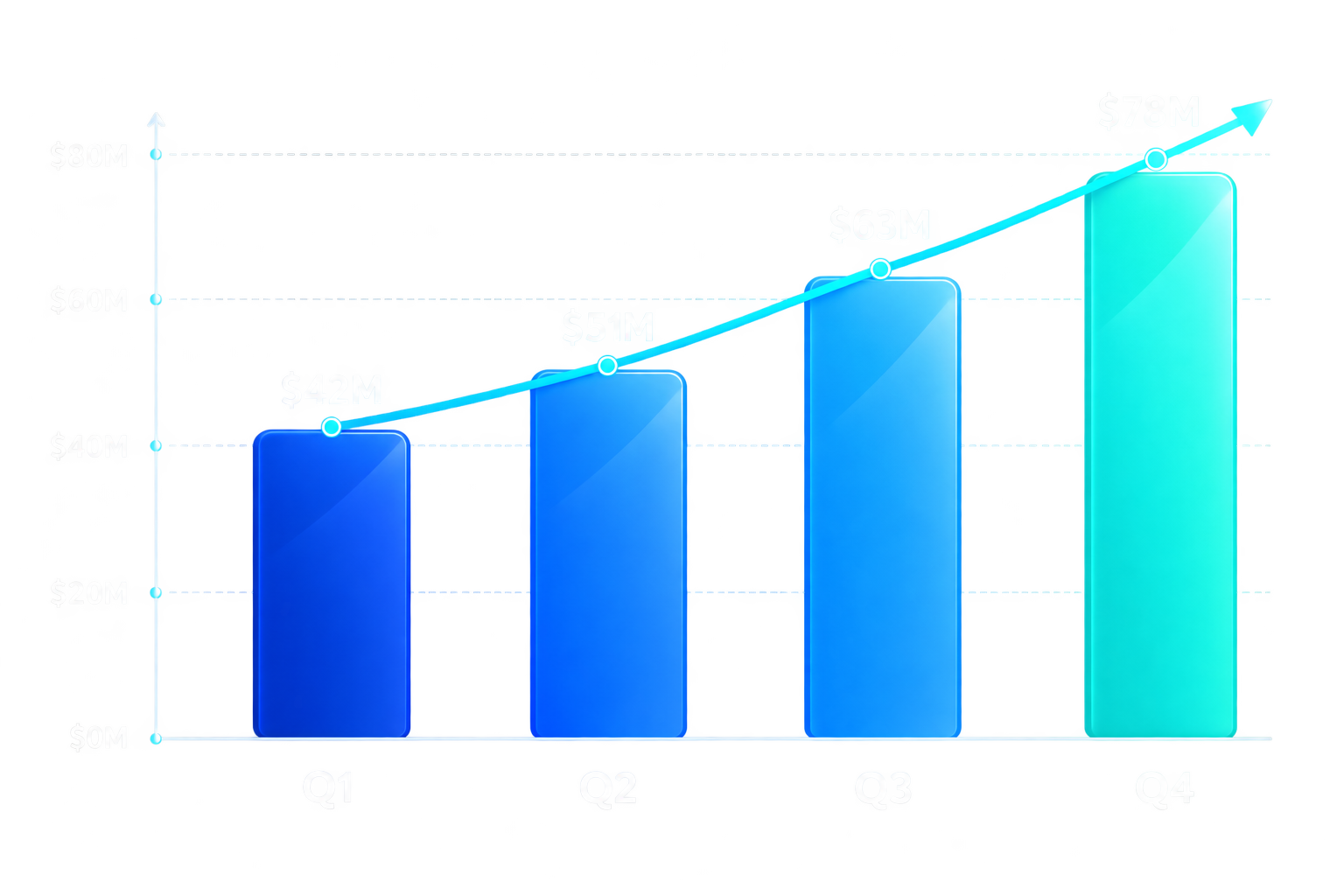




Example assets are downloaded from the official OpenAI Cookbook article “Generate Transparent Image Assets for Campaigns and Presentations.” PixBulk stores local copies for this demonstration and presents original explanatory copy around them.
Read the official OpenAI Cookbook exampleA GPT transparent background maker generates the subject and its alpha channel together instead of painting an opaque scene behind it. This produces a PNG or WebP asset that can be placed directly over another color, photograph, slide, storefront, or template.
The page starts with GPT Image 2 selected and sends the background value as transparent. PNG is selected by default, and WebP remains available when you want a transparent format with a different compression profile.
PNG and WebP can preserve transparency. JPEG does not contain an alpha channel, so it is disabled whenever Transparent is selected in the generator.
No. This workflow asks GPT Image 2 to generate transparency natively. A background remover remains useful when you already have an opaque photograph, but a new asset can often skip that extra processing step.
Describe one isolated subject and explicitly request a genuine transparent alpha channel. Avoid asking for a studio wall, colored backdrop, room, landscape, card, panel, or other background because those prompt instructions can conflict with transparency.
Transparent generation is useful for product bottles, stickers, icons, decorative elements, apparel artwork, presentation illustrations, and other assets that must move between layouts. Always inspect small details before publishing or printing.
It can help because the model creates visible details and alpha information in one pass. Results still vary, so inspect glass edges, fine fibers, hair, ribbons, holes, shadows, and translucent materials at full size before production use.
Yes. A transparent asset can be reused across Shopify banners, seasonal campaign layouts, marketplace graphics, social posts, email headers, and product catalogs. Keep the whole object visible and leave enough transparent padding for flexible placement.
Generation uses the existing PixBulk credit system, and the exact cost shown by the generator depends on the selected quality and resolution. You can review the displayed credit cost before submitting the request.
The examples on this page come from the official OpenAI Cookbook and are stored locally so the landing page does not hotlink them. They demonstrate product photography, presentation graphics, design assets, and merchandise artwork with real alpha channels.
Describe the isolated asset you need and start with GPT Image 2, transparent background, and PNG already selected.
Make a transparent image