

Bulk Image Renamer
Turn messy files like IMG_4521.jpg into clean, keyword-rich names like blue-cotton-tshirt-front.jpg — in bulk. Build a naming rule once, preview every new filename next to its thumbnail, and download a renamed ZIP. Free, and nothing leaves your browser.
Images are renamed and zipped locally in your browser.
Can't find what you need? Write us a message and we'll get back to you.
Why SEO image filenames matter
Image filename SEO is a small but useful signal because it gives search engines and asset managers another clue about what the file contains. A name like IMG_4521.jpg says nothing. A name like blue-cotton-tshirt-front.jpg is easier to read, easier to audit and more aligned with the product page where the image appears.
For ecommerce teams, the benefit is operational too. When product photos, ad creatives and content folders all follow the same pattern, it is easier to catch missing angles, review batches and avoid uploading the wrong image to the wrong page.
The best workflow is simple: rename product images in bulk before upload, keep filenames descriptive, preview the thumbnails, and pair the new names with accurate alt text and relevant surrounding page copy.
IMG_4521.jpgblue-cotton-tshirt-front.jpg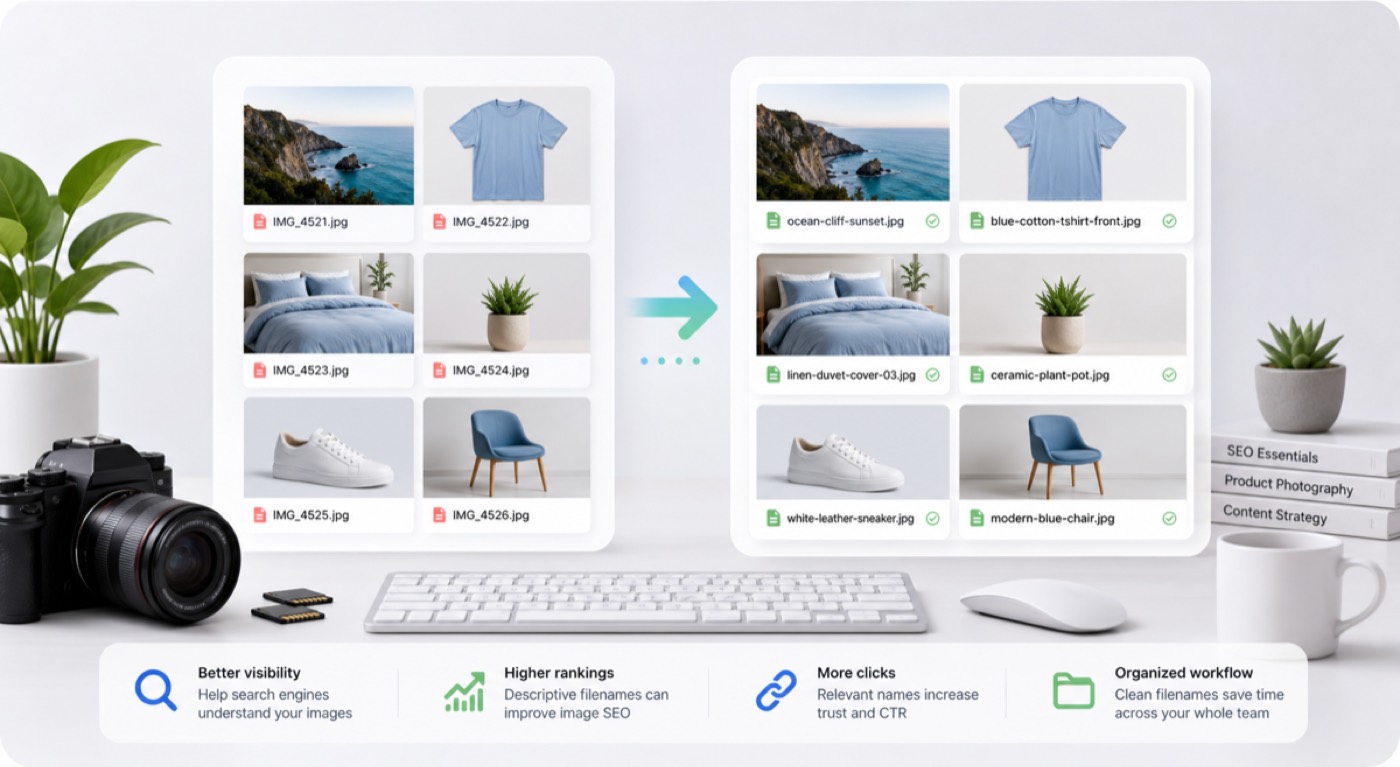
How the bulk image renamer works
A three-step workflow for bulk rename images, from raw camera names to descriptive web-ready filenames.
Upload images locally
Drag in product images, photos or a whole export folder. The files stay in your browser and the original image bytes are not changed.
Set a naming rule
Choose variables like Custom name, file number, original filename, date, dimensions or file size, then edit the template into the order you need.
Download renamed ZIP
Review thumbnails, original names and new names, let the tool dedupe collisions, then download the renamed images as one ZIP.
Bulk image renamer template examples
Use tokens to build filenames that are descriptive, predictable and easy to map back to the original image folder.
| Template | Example result | When to use it |
|---|---|---|
| {name}-{n} | blue-tshirt-01.jpg | Best for a simple product or keyword batch where every image shares one base phrase. |
| {filename}-{width}x{height} | shoe-front-1200x1600.jpg | Keep the original filename and add image dimensions when the size matters for handoff or QA. |
| {filename}-{date} | IMG-4521-2026-07-08.jpg | Keep part of the original camera filename while adding a date for archive sorting. |
| {name}-{n} | linen-duvet-cover-003.webp | Use a custom name plus the file number when every image belongs to the same product, shoot or campaign. |
When to use a bulk image renamer
Bulk rename images whenever the filename should carry meaning for search, upload workflows or team handoff.
Ecommerce image SEO
Rename product images in bulk before you upload to Shopify, WooCommerce, Amazon or Etsy, so every listing photo carries a readable product keyword instead of a camera code like IMG_4521.
Photography delivery
Turn camera exports into client-ready sets with names that include shoot date, location, subject or sequence number, without editing the images themselves.
Asset organization
Clean up downloaded assets from marketplaces, design tools or ad libraries so the folder can be searched, sorted and handed off without confusion.
Content operations
Use a shared custom name, dates, dimensions and sequence numbers to align filenames with campaigns, landing pages or content folders.
A bulk image renamer built for SEO folders
The goal is not just changing file names. It is making the whole image folder predictable enough for SEO, upload workflows, team review and archive work.
Reusable filename templates
Compose names from reusable variables — your product keyword, an auto-incrementing number, the original name, date or image dimensions — so every file in the batch follows one consistent rule.
Pick variables, then fine-tune
Insert variables with one click, then edit the template directly to change the order, separators or wording before you export.
Thumbnail preview and dedupe
Every proposed filename appears beside the image thumbnail before export, and collisions are handled automatically with clear suffixes.
SEO-safe cleanup controls
Lowercase filenames, choose hyphens or underscores, trim maximum length and keep extensions stable across the batch.
Renamed ZIP export
Download all renamed images in one ZIP so the batch stays together and is ready to upload, share or archive.
Private browser processing
The bulk image renamer runs in your browser. No upload, no sign-up, no watermark and no server-side copy of your files.
Tips to rename images for SEO
Use the bulk image renamer as one part of a clean image SEO workflow, not as a keyword stuffing machine.
Lead with useful words
Use the product, color, material, angle or category that a person would search for. Descriptive filenames help humans and search engines understand a folder faster.
Keep the pattern consistent
Choose one order such as product-color-angle-number and reuse it across the whole batch. Consistency matters more than squeezing every possible keyword into one filename.
Pair filenames with alt text
A good filename supports the page, but alt text, captions, surrounding copy, compression and product data still do most of the ranking work.
Bulk image renamer FAQ
Is this bulk image renamer really free?
Yes. The bulk image renamer is free to use, does not require sign-up, and does not add a watermark. It creates new filenames and a ZIP in your browser.
Are my images uploaded?
No. Images stay on your device. The tool uses browser File APIs to read names, show thumbnails and package a ZIP locally, so the files are not uploaded to PixBulk.
How do I rename a batch with the same product name?
Use the Custom name variable when a whole batch shares one product, shoot or campaign name. Combine it with the number variable for sequential numbering, or add the original filename variable to keep the current name as part of the new one.
Does renaming images change image quality?
No. The image bytes are copied into the ZIP without re-encoding, so the rename does not change pixels, color, compression, metadata or visual quality.
What makes a good SEO image filename?
Use short descriptive words, keep the important product keyword near the front, separate words with hyphens, avoid stuffing, and make the pattern consistent across the image set.
What image formats can I rename?
The tool accepts browser-readable image files including JPG, PNG, WebP, GIF, AVIF, SVG, HEIC and HEIF. It keeps the original file data and can preserve or lowercase extensions.
What happens if two files get the same new name?
Yes. When two images would receive the same filename, the tool automatically adds a numeric suffix such as -1 or -2 and marks those rows in the preview.
Can I bulk rename hundreds of photos?
Yes. It is designed for large folders. The practical limit depends on your device memory because the renamed ZIP is built locally in the browser.
Will file renaming alone improve Google Images rankings?
Changing filenames helps organization and can support image SEO, but it should be paired with useful alt text, relevant surrounding page copy, compressed images and a clean product page structure.
Can I download all renamed images together?
Yes. After previewing the filenames, click Download renamed ZIP to save every renamed image in one file. The tool copies the original image bytes into the ZIP without uploading them.
Rename your image folder for SEO
Drop in a folder, check the thumbnail preview, and download every renamed image together as one ZIP.